Overview
Projects
Reports
User Management
Help & Support
Quick Index
- 1. How to Log In
- 2. Don't Refresh the Page!
- 3. I Can't Find My Project
- 4. Issuing and Signing Vouchers
- 5. Uploading Documents
- 6. Deleting Documents
- 7. Printing Reports
- 8. Permissions Reference
Welcome to the App! 👋
This is where we keep track of project money. You can use it to see money received, track activities, issue payment vouchers, and print reports.
1. How to Log In
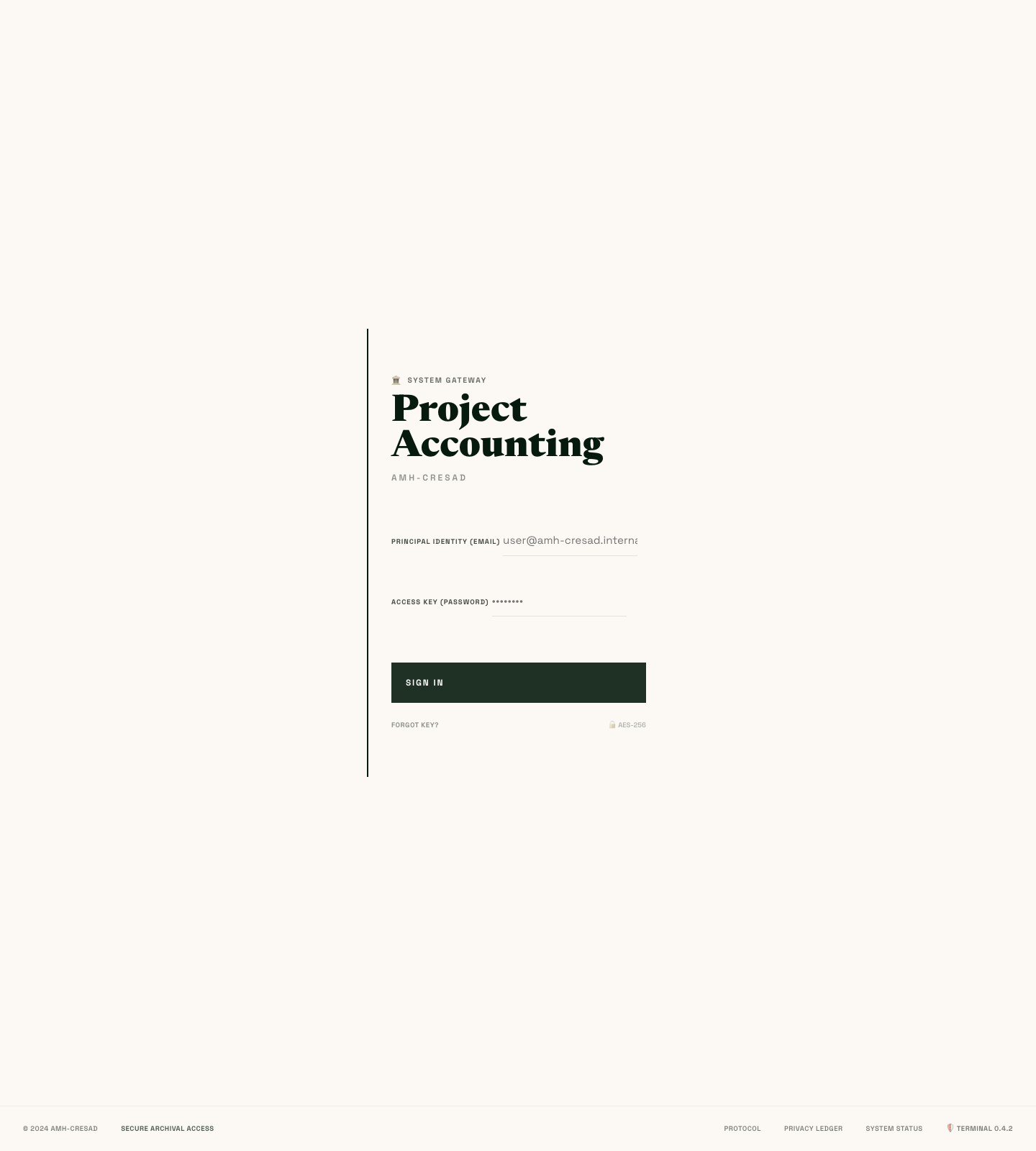
When you open the app, you will see a login screen. Put your email in the PRINCIPAL IDENTITY box and your password in the ACCESS KEY box. Then click SIGN IN.
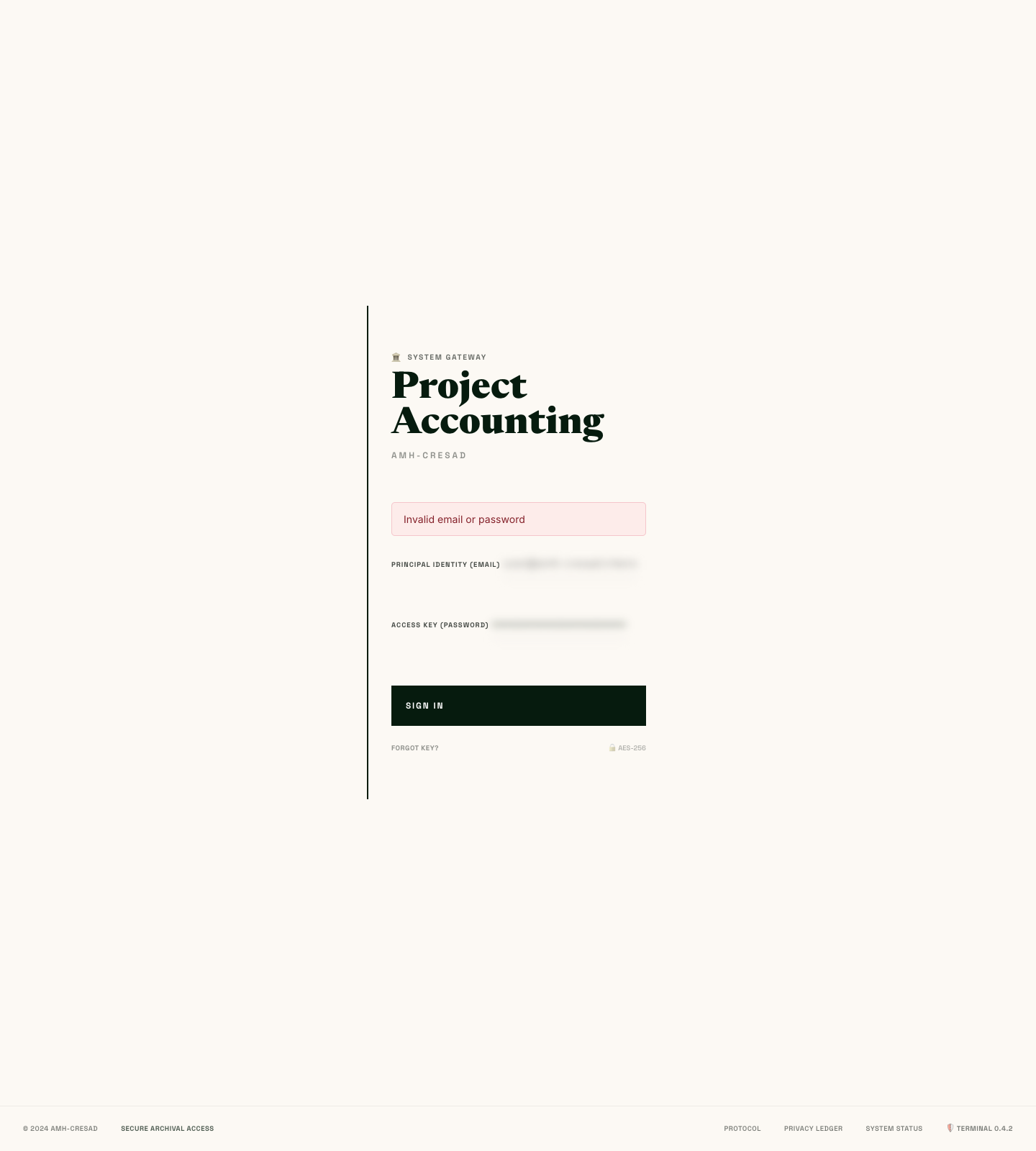
If you type the wrong email or password, you'll see a red error box. Just fix the mistake and try again!
2. Don't Refresh the Page!
If you refresh the web page or close your browser tab, the app will log you out! This is to keep the money data safe. If it happens, just sign back in.
3. I Can't Find My Project
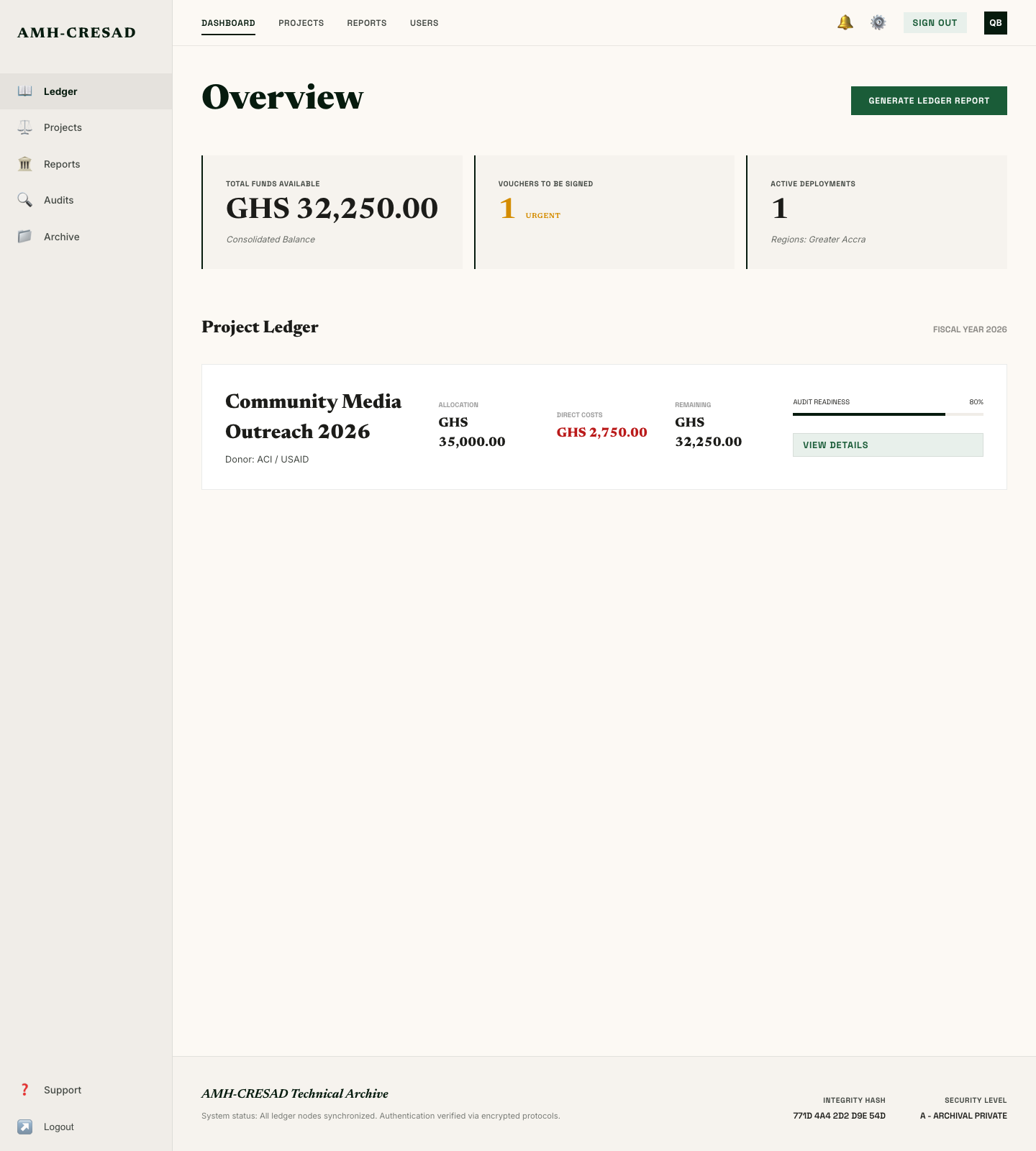
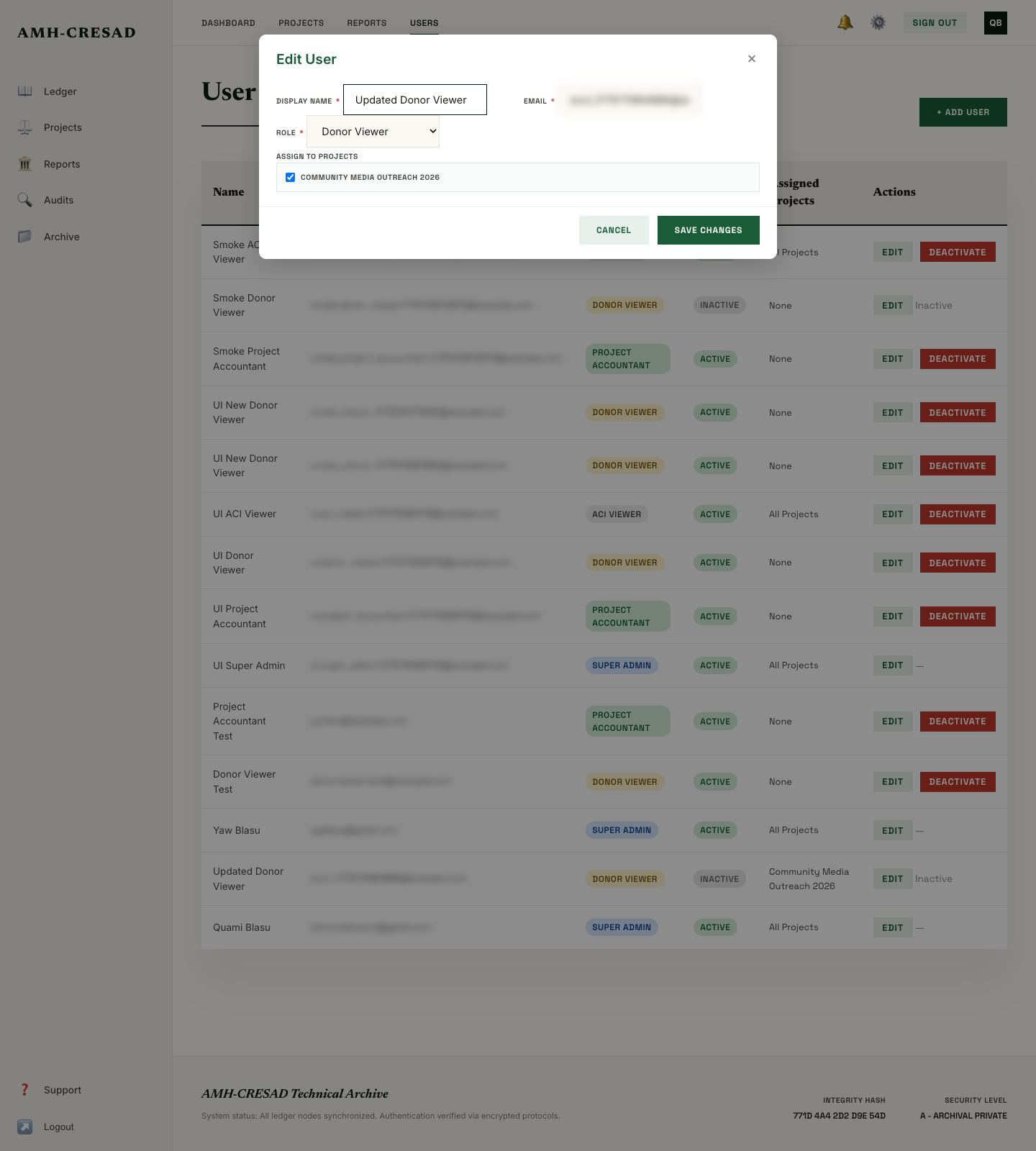
You can only see the projects that you have been told to work on. If you can't find a project, ask a Super Admin to assign it to you!
4. Issuing and Signing Vouchers
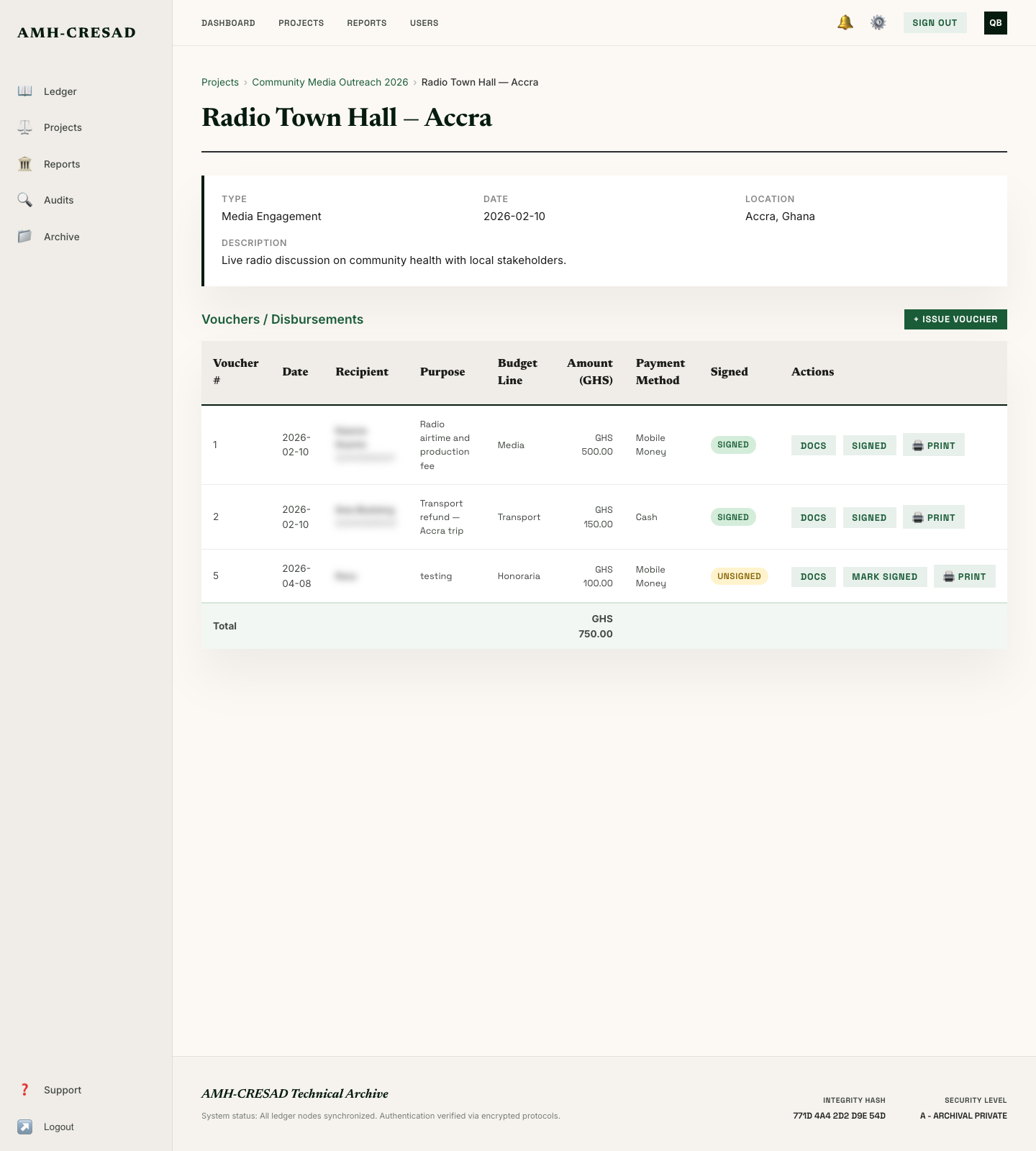
Accountants can issue payment vouchers. Once you issue it, a Super Admin or Accountant needs to mark it as signed. Once it says "SIGNED" in a green badge, you cannot change it or sign it again!
5. Uploading Documents
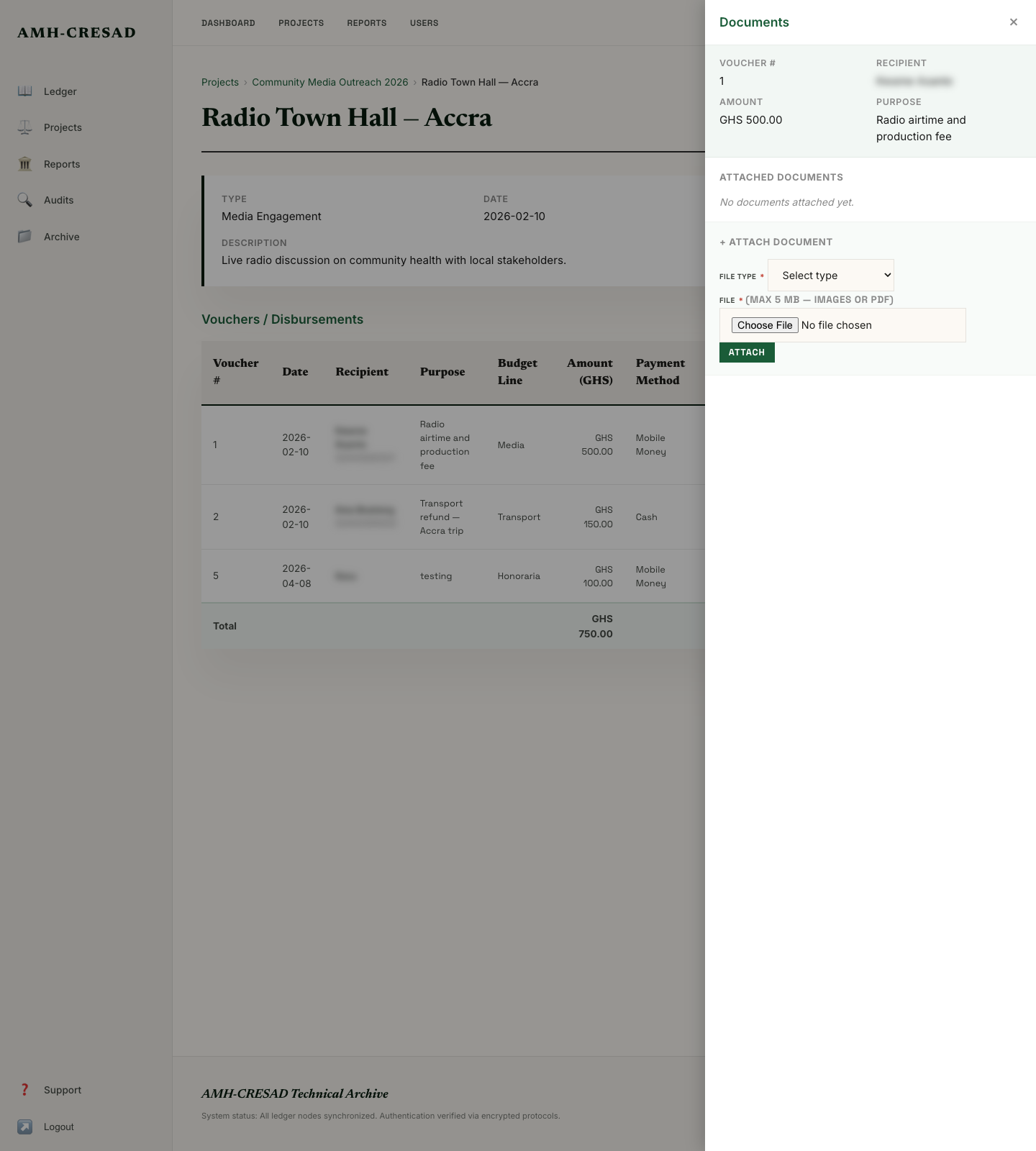
Need to attach a receipt or sign-up sheet? Click the DOCS button next to a voucher. You can only attach picture files (like JPG) or PDF files, and they must be less than 5 MB.
6. Deleting Documents
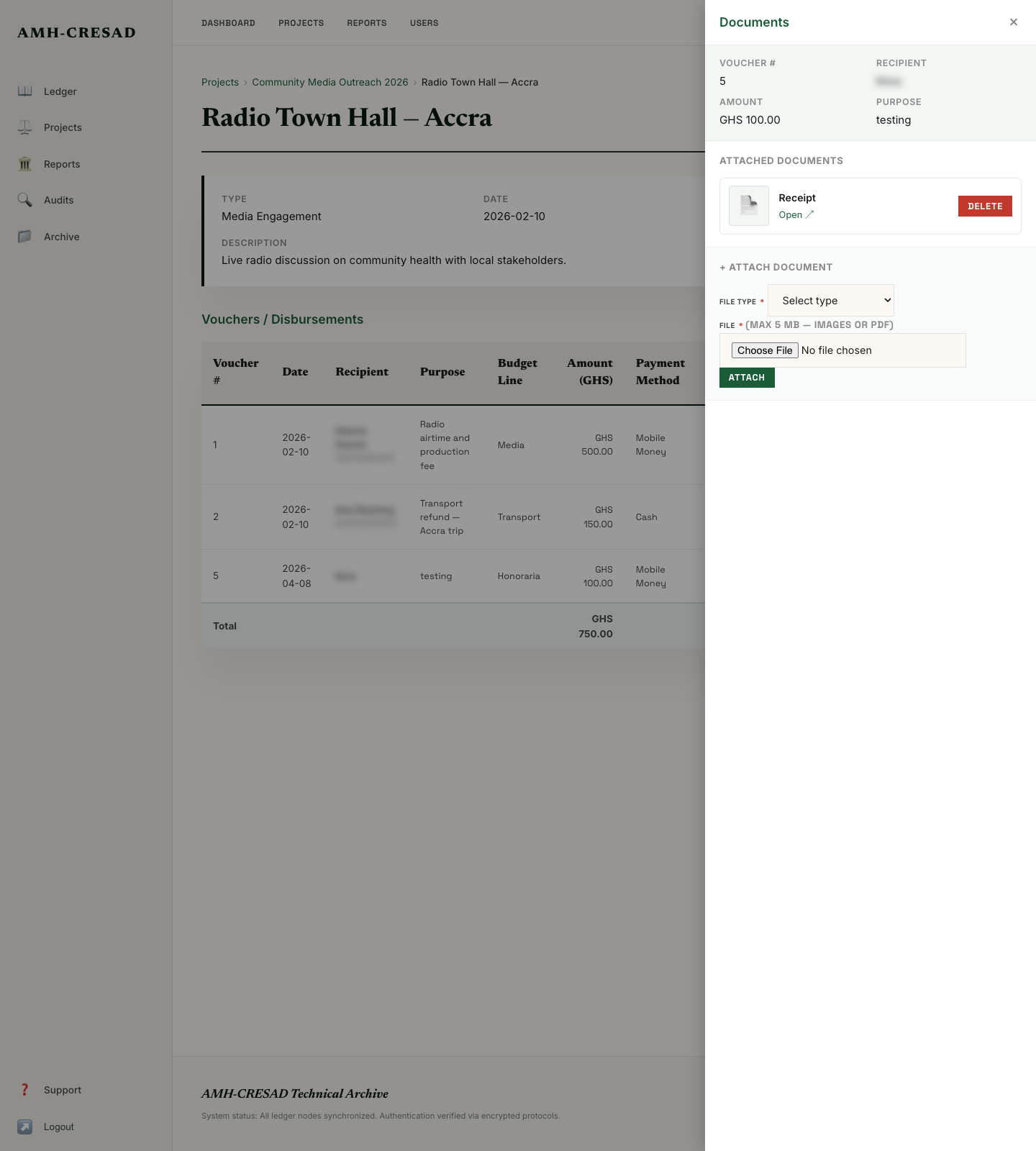
Made a mistake? Be careful—only Super Admins are allowed to delete a document once it is attached! If you need to remove something, please ask an Admin to click the trash can button for you.
7. Printing Reports
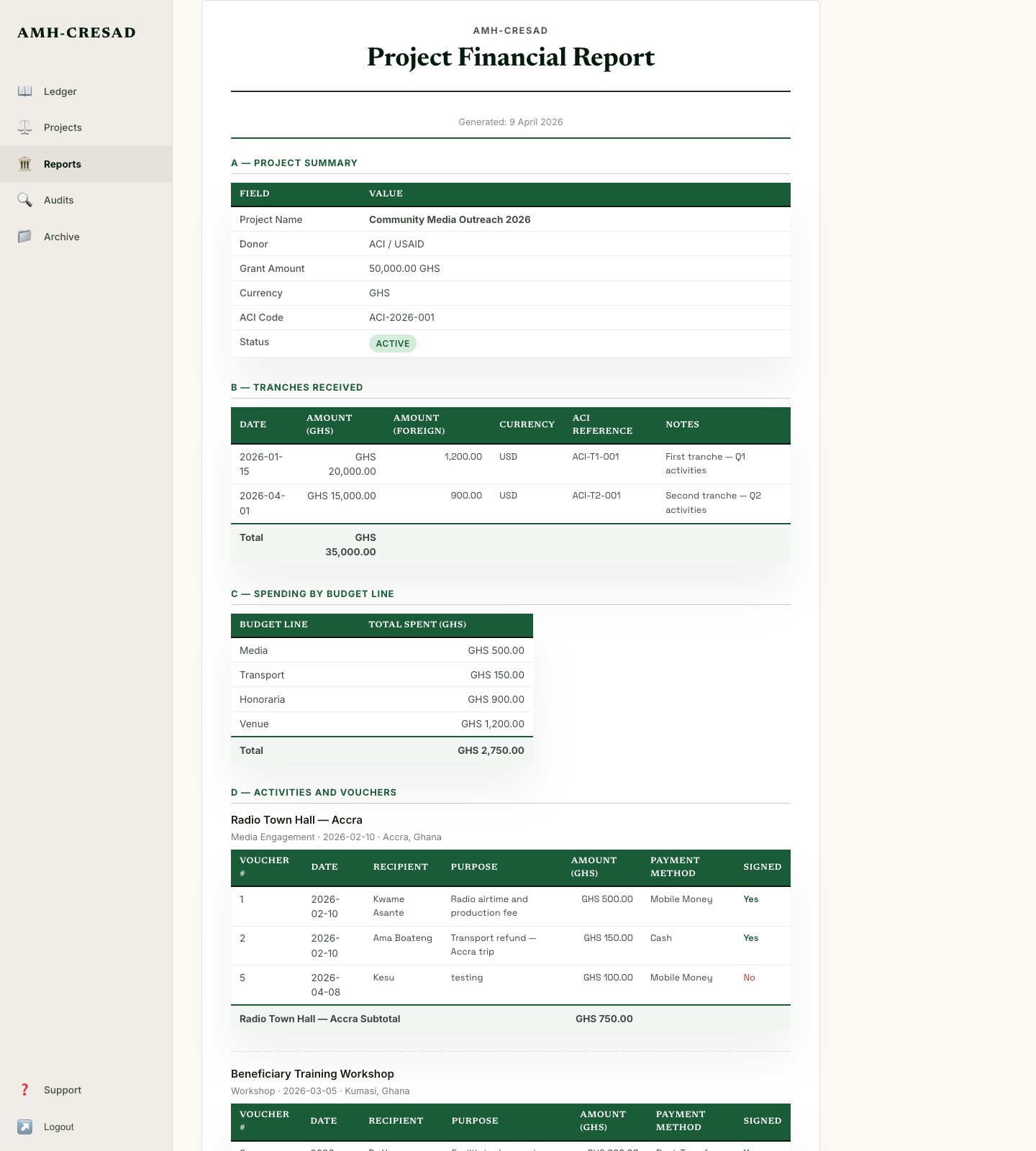
Go to the REPORTS page. Choose your project from the drop-down menu and click GENERATE REPORT. Wait a second, and then your report will appear.
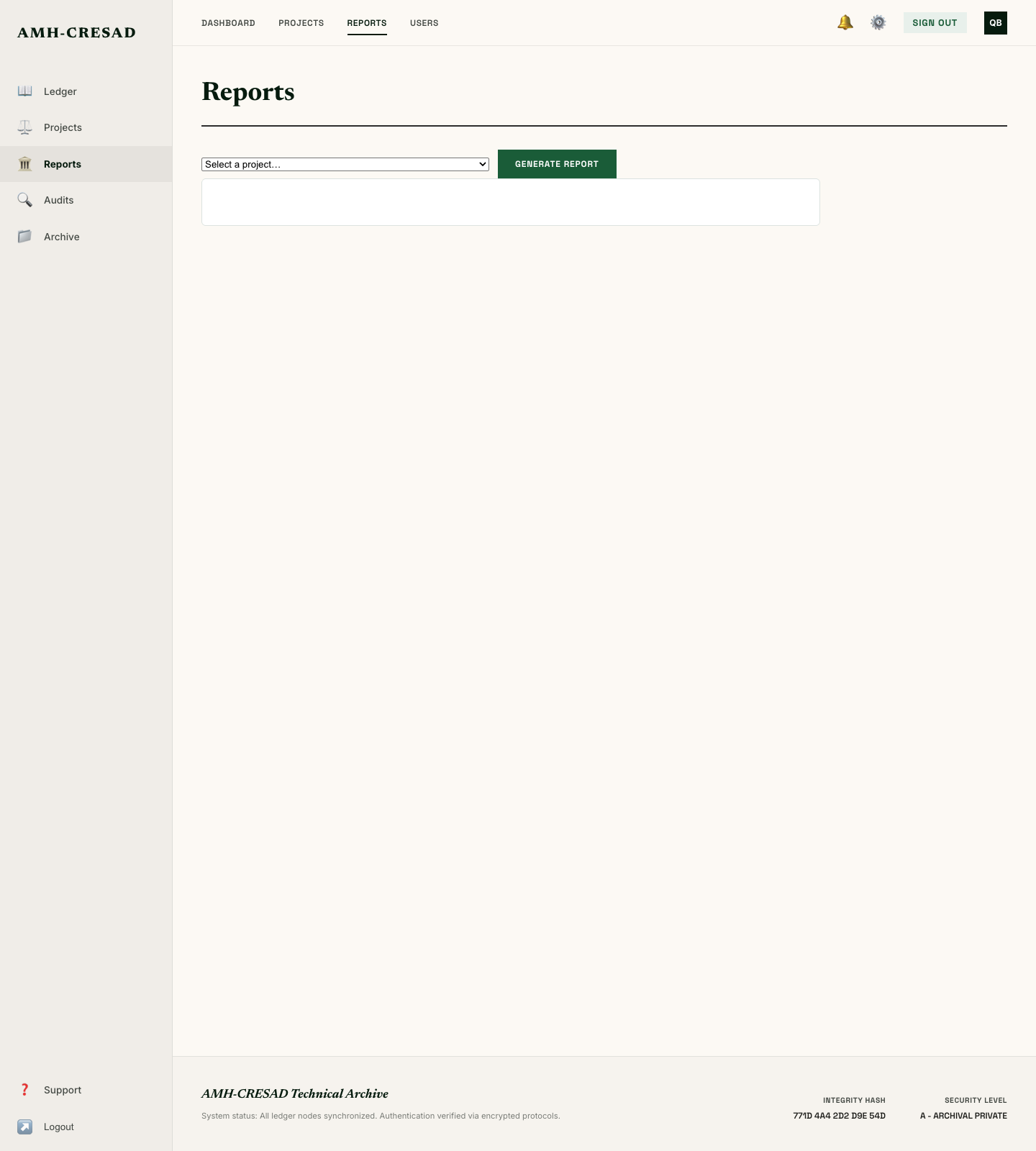
To print it or save it as a file on your computer, click the 🖨 Print / Save as PDF button.
8. Who Can Do What?
Here is a quick look at what different people are allowed to do. Super Admins are like the principals, and Viewers are like guests!
| Job / Role | Make Vouchers & Attach Files | See Projects | Admin Superpowers |
|---|---|---|---|
| Super Admin | Yes, for everything | All of them | Yes! Can create users & delete files |
| Project Accountant | Yes, but only for their own projects | Only assigned ones | No |
| Donor Viewer | No, they can only watch | Only assigned ones | No |
| ACI Viewer | No, they can only watch | All of them | No |